Control panel access
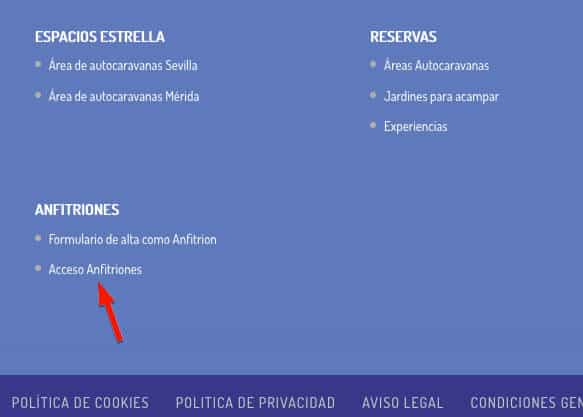
To access the host control panel with the username and password that you indicated when registering, go to either the header or the footer of the page. areasautocaravanas.com and click on «Hosts access» where we indicate in the image with a red arrow:

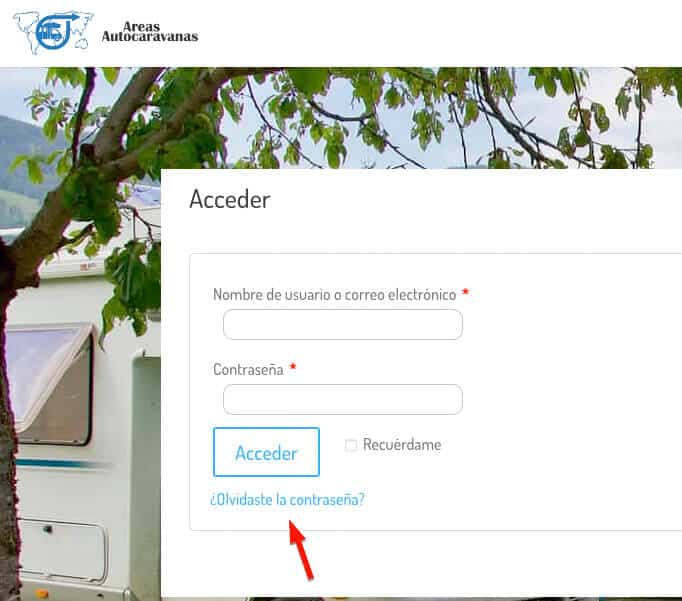
Once you have clicked on the link, the following window will appear where you must enter your access information:
Once written, click on the "Access" button, and you will be inside your CONTROL PANEL as a Host of areasautocaravanas.com. Within this panel you can see the reservations or orders received, the calendar of reservations received, income reports and the "Spaces" section where you can register and configure your space, garden or experiences.
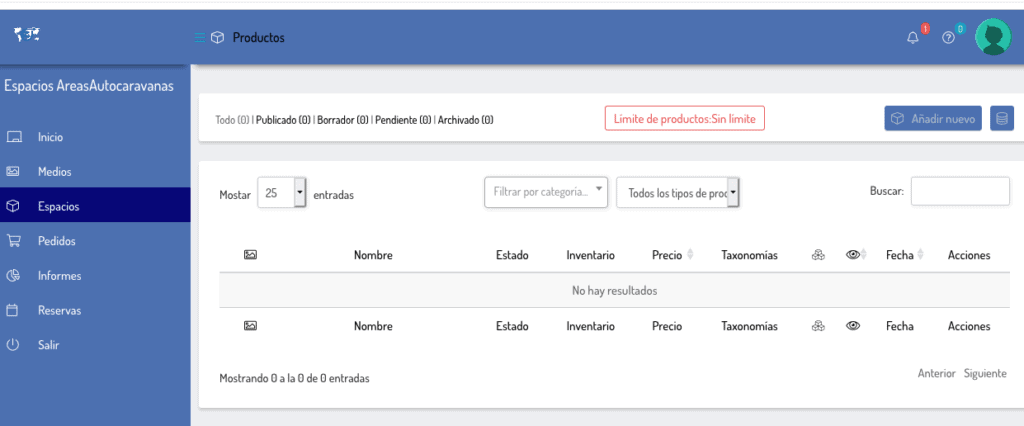
Create a Space for motorhomes
By clicking on spaces and then "Add new" we begin to create your space or garden to offer to your clients. If it is an experience, click on this link.
1- Select from the drop-down menu and choose »Reservations for Spaces or Garden»
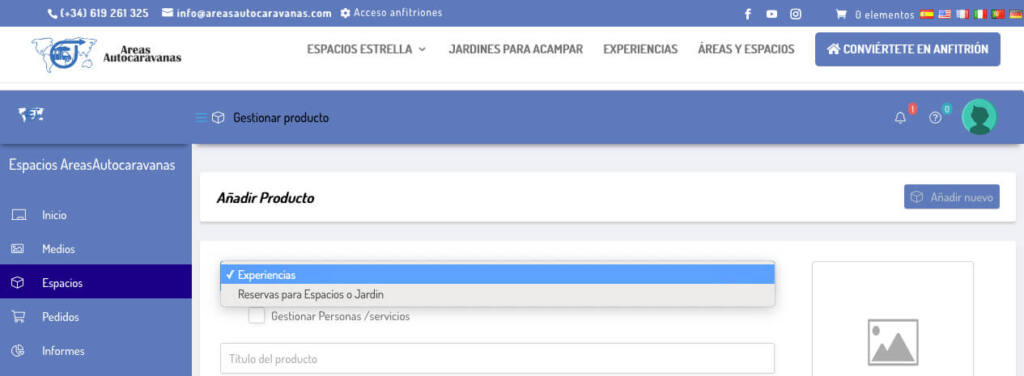
2 – Write the name of your space in the product title with the following structure: Motorhome area (denomination or area, Province), or Motorhome space (denomination or area, Province), or Camping Garden (denomination, Province).
For example: El Dormilón motorhome space, Seville
3- Write a short description of your space or garden. This description is below the price and before the service icons, it is the one that is most visible. As its name says, it is short, so be brief.
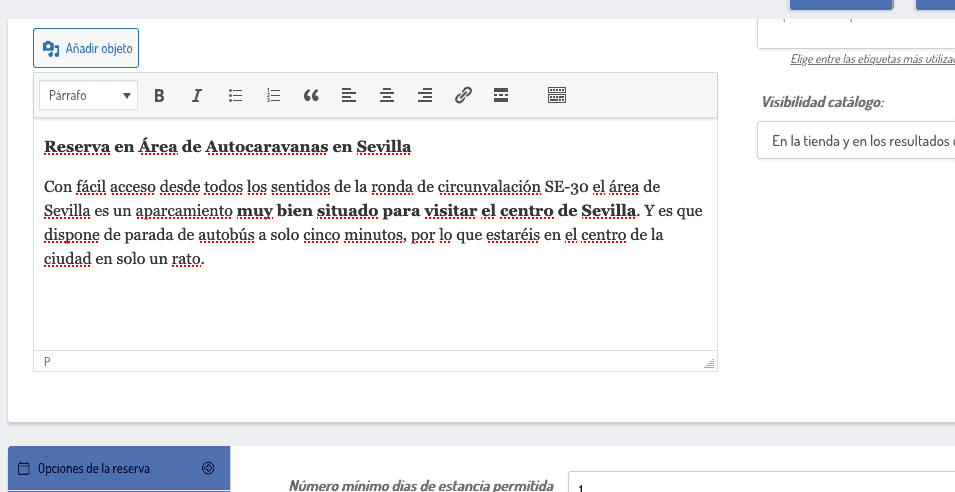
4 – Long description (Description): Here it is usually used to count the services around, prices per person, season, closing dates, etc. If you have doubts, you can look at other areas already created to get ideas.
5 – The Category : Choose by clicking on the box if it is a Space for motorhomes or Gardens for camping. You can check both options if the price of one and the other completely match. If you have different prices and/or different services, we recommend creating two different ones: a space for motorhomes and a garden for camping, making a distinction in the name so as not to confuse the end customer.
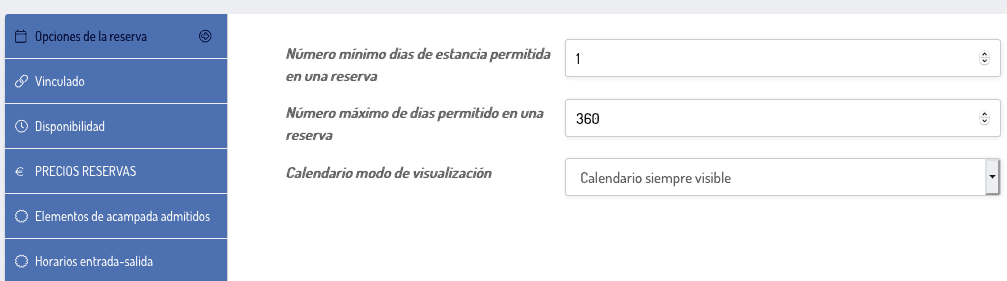
6- Reservation options: Choose the minimum and maximum number of days per reservation and the type of calendar to display in the visible part, we recommend choosing "Always visible calendar".
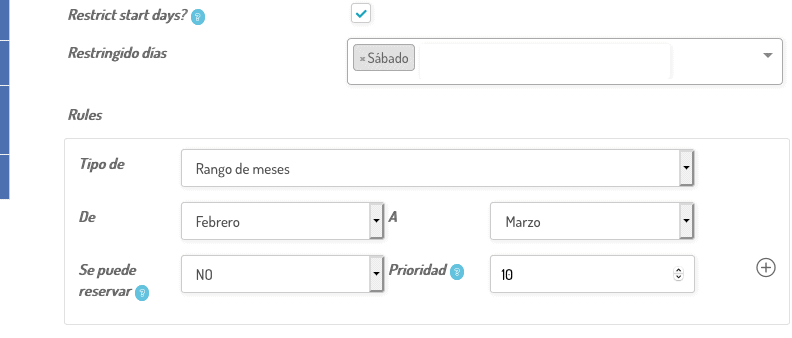
7 – Availability: The number of places is indicated here available to reserve per day, how far in advance you accept reservations, if you want to restrict days to start a reservation, (for example in areas with a lot of traffic on weekends, do not allow them to start on Saturday to force clients to reserve on Friday night, by the way, if you decide to do so, write a review in the long description).
There are also the rules (Rules) where reservations can be prevented from being made, for example because they close for holidays. You can restrict by: Custom date range, Month range, Week range, Day range. At the bottom right there is a (+) that by clicking on it you can add more than one rule.
8- Reserve prices
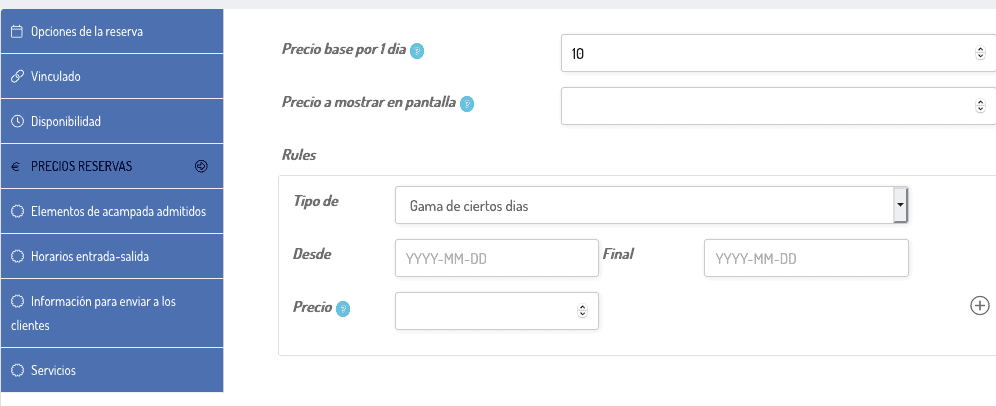
- Base price for 1 day: Standard price to reserve a place
- Price to be displayed on screen: This case is when you want to show a specific price on the screen that can vary if there are groups and other options. It is mainly used in group experiences (for example, the price per person is shown but the minimum reservation is for four people)
- Rules: For cases where the price changes depending on the date, with the options of Range of certain days, Range of months, Range of weeks, range of days. Like the previous rule, at the bottom right there is a (+) that by clicking on it you can add more than one rule.
background-motorhomes_web
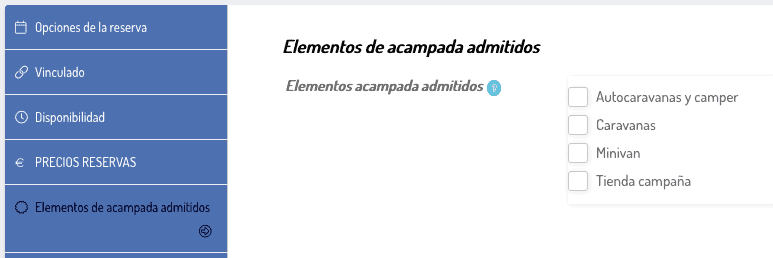
9- Camping elements admitted: Check the box with the camping items you support and they will appear in your space as an icon
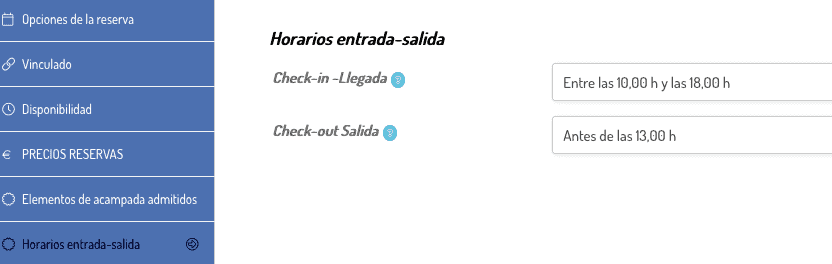
10 – Entry-Exit times (check-in or arrival, Check-out or departure). Write the times you allow to enter and the maximum to leave. If you don't care about the schedule, you can leave it blank.
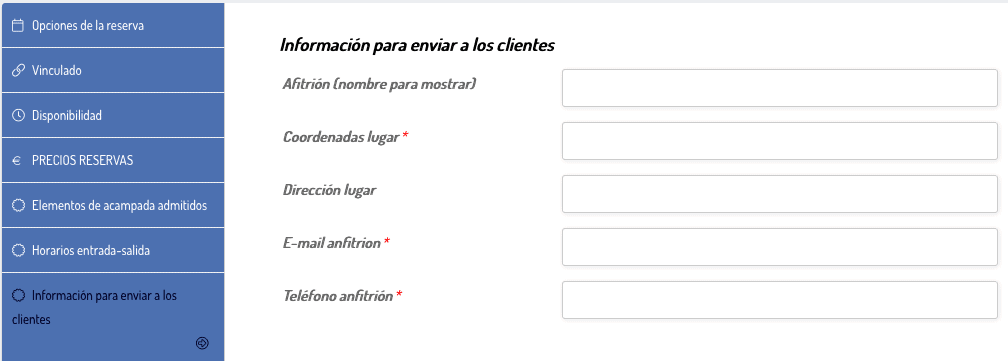
11- Information to send to clients – This section is important since it is the data that is sent to clients by email when they make a reservation. The Coordinates, email and telephone number are mandatory and the platform will not allow you to save the changes if you do not fill them out.
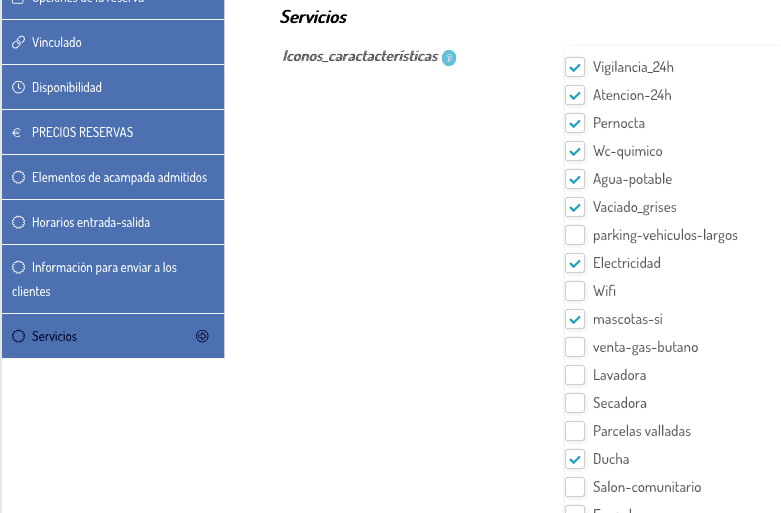
12- Services – iconos de los servicios que dispone el espacio, área o jardín. Marcando la casilla correspondiente aparecerá el icono asignado en su espacio antes del calendario. Este apartado es importante ya que los clientes se fijan mucho en estas cosas antes de reservar.
13- Manage People or Services
First you must check “Manage People/services” in the box between the Reservations for Spaces or Garden/Experiences drop-down menu and the Title for the space.
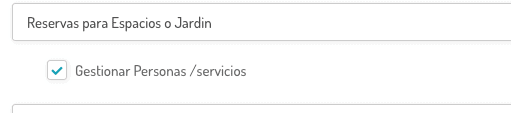
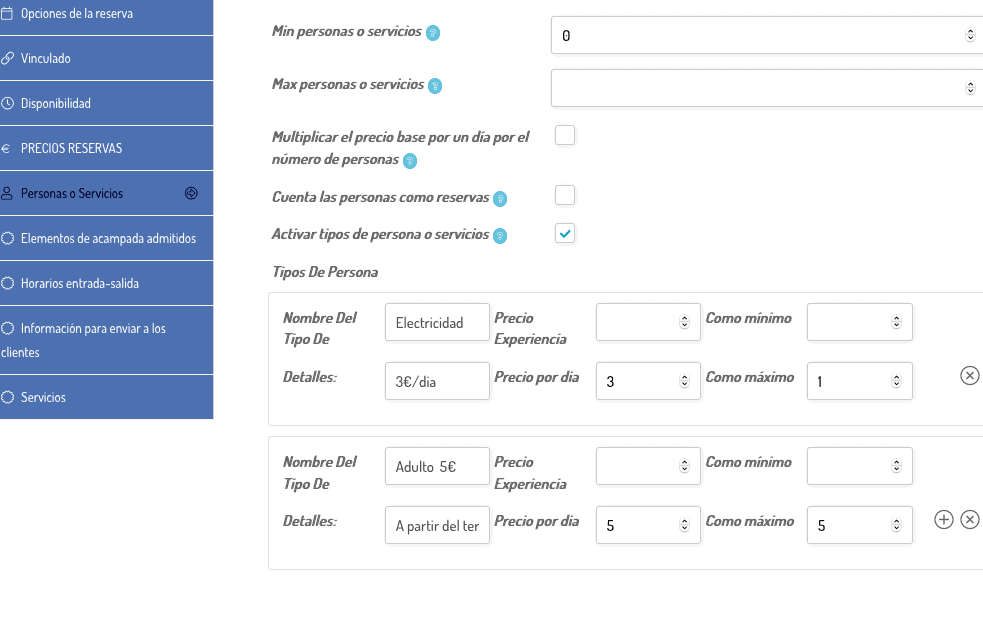
And once marked, the tab to configure People or Services will appear further down on the left side. If it is not mandatory to choose an option, the "Min people or services" section, mark 0. The "Max people or services" section, except in cases of experiences, it is advisable to leave it blank.
Multiply the base price for one day by the number of reservations, as well as Count people as reservations It is usually used in Experiences, not in spaces and gardens. Leave it unchecked.
Activate types of people or services: Marque esta casilla para poder crear opciones de cobro adicional como electricidad por dia, si cobra suplemento por remolque, por persona adicional, etc.
14 – Post featured and additional photos.
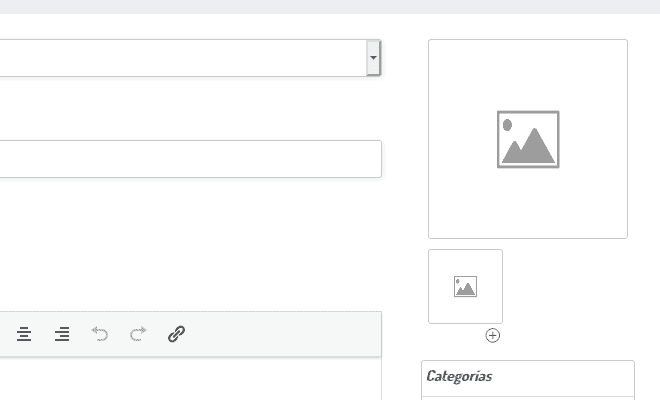
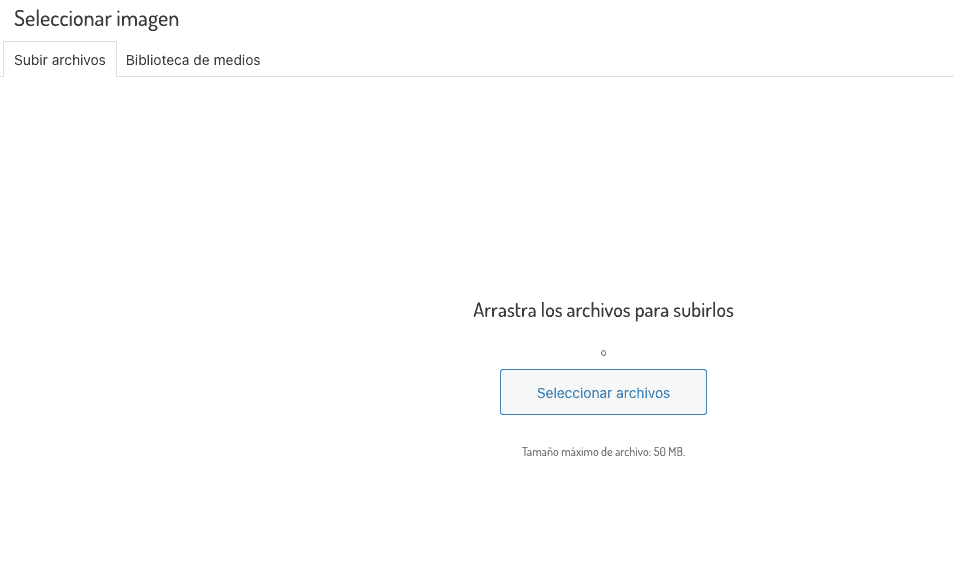
Clicking on the large icon with the little mountain will open "Select Image" from where you can drag the files to upload them or select from the button. Remember, photos must be in jpg or png.
Once the main photo is uploaded, click on the smaller icon below (with a little mountain too) to add additional photos. By clicking on the (+) I could add more photos.
background-motorhomes_web
Por último no olviden de hacer clic sobre el botón de abajo a la derecha PUBLICAR, para que salga su espacio o bien BORRADOR, si decide continuar más adelante.
- Todas las áreas serán revisadas por areasautocaravanas.com
- You are not allowed to place web links to other pages external to areasautocaravanas.com




0 comments